



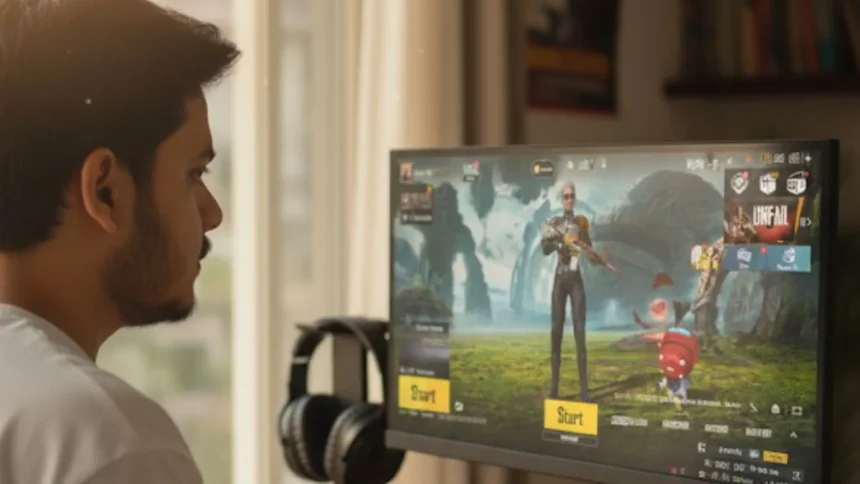
Battlegrounds Mobile India (BGMI) has become one of the most popular battle royale games in the country. While it was designed as a mobile-only game, many players prefer the comfort of playing it on a computer. A bigger screen, better controls with a mouse and keyboard, and smoother graphics make PC gaming more enjoyable. The good news is that you can play BGMI on your computer using emulators.
This guide explains how to download BGMI on PC, the best emulators to use, step-by-step installation, system requirements, and some useful tips to optimize your gameplay.
Can You Play BGMI on PC?
There is no official PC version of BGMI. Krafton has developed the game only for Android and iOS. But you can still run it on your computer with the help of Android emulators. These programs create a mobile-like environment on your PC, allowing you to install and play BGMI easily.
Why Play BGMI on PC?
Many gamers choose the PC version of BGMI for these reasons:
- Better graphics with high resolution and smooth frame rates.
- Improved controls using a mouse and keyboard for accurate aiming.
- Larger display for spotting enemies and enjoying details.
- No mobile heating or battery issues, making long sessions more comfortable.
Of course, there are a few drawbacks too. You need additional software, some lower-end PCs may face performance issues, and since BGMI is not officially released for PC, there’s always a small risk of bans if the emulator is misused.

Best Emulators for BGMI on PC
If you want the best BGMI experience on your computer, these are the top emulators to try:
- GameLoop: Officially recommended for PUBG Mobile and BGMI. Smooth controls, high FPS, and anti-cheat support.
- BlueStacks: Popular worldwide. Offers advanced key mapping, multi-instance support, and strong performance.
- LDPlayer: Lightweight emulator that uses less CPU and RAM. Great for gaming with high frame rate support.
Step-by-Step Guide to Download BGMI on PC
Step 1: Download an Emulator
- Visit the official website of GameLoop (recommended).
- Install the latest version on your PC.
Step 2: Install BGMI
- Open the emulator and search for BGMI.
- Click Download and wait until the installation is complete.
- Log in with your Google or Facebook account.
Step 3: Optimize Settings
- Set graphics to Balanced or Smooth for better FPS.
- Use the emulator’s key mapping tool to adjust controls.
- Enable high FPS mode in the emulator settings for smoother play.
System Requirements for BGMI on PC
Before downloading, check if your system meets the requirements.
Minimum Specs:
- OS: Windows 10/11 (64-bit)
- CPU: Intel i3 or AMD Ryzen 3
- RAM: 4 GB
- GPU: Nvidia GTX 960 / AMD RX 560
- Storage: 10 GB free space
Recommended Specs:
- OS: Windows 10/11 (64-bit)
- CPU: Intel i5 or AMD Ryzen 5
- RAM: 8 GB or more
- GPU: Nvidia GTX 1060 / AMD RX 580
- Storage: SSD with 10 GB free space
Tips for Smooth Gameplay
- Close unnecessary background apps.
- Keep graphics drivers updated.
- Use a wired internet connection for low ping.
- Allocate more RAM and CPU to the emulator for stable performance.
Common Problems and Fixes
- BGMI not installing: Update emulator, restart PC, or download via Play Store inside emulator.
- Black screen or lag: Lower graphics settings, update GPU drivers, and assign more RAM.
- Controls not working: Reset key mapping or restart the game.
- Login issues: Clear emulator cache, reinstall BGMI, or ensure Google Play services are enabled.
Also Read: Ananta Game’s GTA 5 Influence Explained