
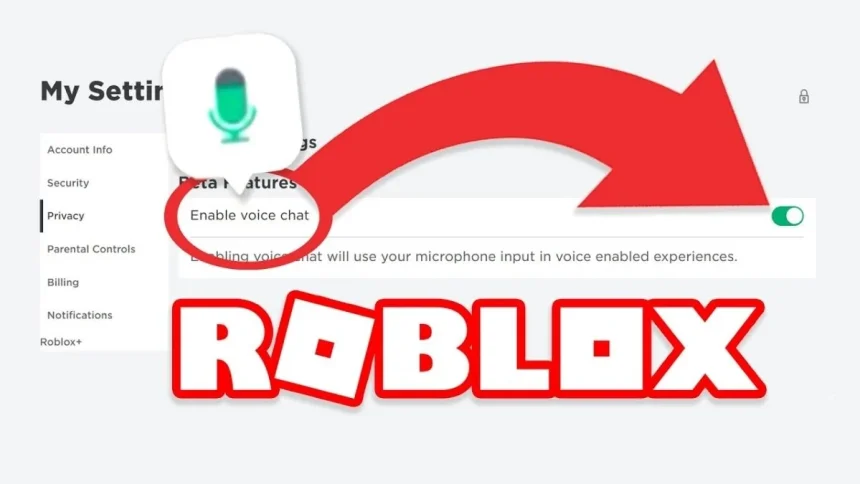
Voice chat has made Roblox more interactive by letting players talk instead of only using text. It helps teams communicate better and makes gameplay feel more natural. Still, many players struggle to turn it on because of missing steps or settings. This guide explains everything in a simple way, from requirements to setup on all devices.
What you need to use Voice Chat in Roblox
Before voice chat appears in your settings, your account must meet a few basic rules.
- First, your age must be 13 or above. Roblox does this to keep younger users safe.
- Second, your account should be in good condition. If there are active bans or warnings, voice chat will not unlock.
- Third, age verification is mandatory. You can verify using an official ID or Roblox’s face scan system.
- In some regions, adding and verifying a phone number is also required.
- You must also have a working microphone, either built-in or external.
- Lastly, voice chat only works in supported games, so not every experience will allow it.
How to verify your age on Roblox
Age verification is the most important step. Without it, voice chat will stay locked.
- Log in to your Roblox account using mobile, desktop, or a web browser.
- Open Settings and go to Account Info.
- Click on Verify My Age.
- Follow the instructions shown on screen. Depending on your region, you may need to upload an ID or complete a face scan.
- Once Roblox approves the verification, voice chat settings will unlock automatically.
If voice chat still does not appear, it may not be available in your country yet.
How to turn on Voice Chat in Roblox on PC and Mac
Enabling voice chat on PC or Mac is quick once your account is verified.

- Log in to Roblox.
- Click the gear icon and open Settings.
- Go to Privacy and Content Restrictions.
- Select Communication.
- Find the Voice Chat option and turn Enable Microphone ON.
After this, join a game that supports voice chat to start talking. You can turn it off anytime from the same menu.
How to turn on Voice Chat in Roblox on mobile
The steps on Android and iOS are almost the same as desktop.
- Open the Roblox app and tap the More option.
- Go to Settings.
- Open Privacy and Content Restrictions, then Communication.
- Turn Enable Microphone ON.
Your phone may ask for microphone permission. Make sure to allow it. Voice chat will now work in supported games.

How to turn on Voice Chat in Roblox on PS5 and Xbox
Console users need to enable voice chat from another device first.
- Open Roblox on mobile, desktop, or browser.
- Go to Settings and turn voice chat ON from there.
- Connect a supported headset or microphone to your console.
- Check console privacy settings. On Xbox, allow voice communication in Family Settings.
Once done, voice chat will work in supported Roblox experiences on console.
How to fix Voice Chat problems in Roblox
Sometimes voice chat does not work even after enabling it. These fixes usually help.
- If the voice chat option is missing, your age verification may not be complete.
- If your mic is not working, check system permissions and confirm the correct input device is selected.
- Update your audio drivers on PC if needed.
- For consoles, review privacy and communication settings again.
- If voice chat works in one game but not another, that game may not support voice chat.
- Restart Roblox, update the app, and check your internet connection.
If nothing works, contact Roblox Support with your account and device details.
Also Read: Christo Popov’s Coronation: From consistency To Immortality At BWF World Tour Finals