How To Create Polaroid-Style AI Photo With Cristiano Ronaldo
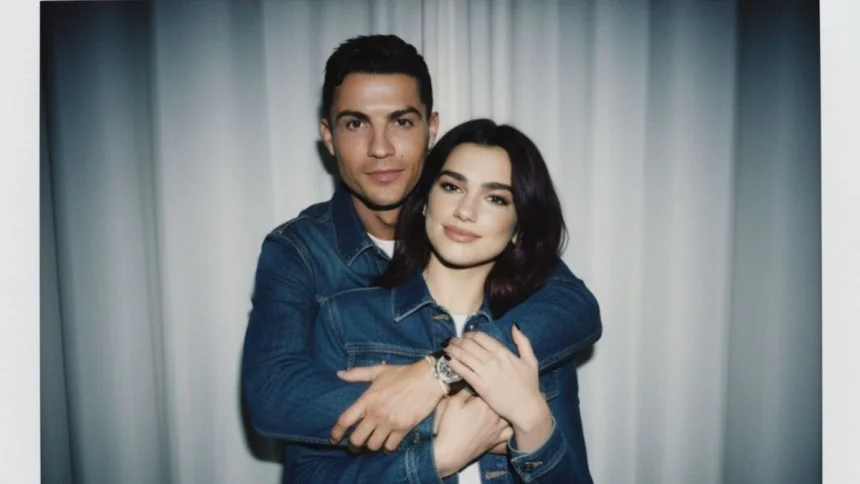
Creating unique AI-generated images has become easier with advanced tools like Google Gemini. One popular idea is producing a Polaroid-style photo featuring yourself alongside famous personalities like Cristiano Ronaldo. This guide explains how to do it step by step, ensuring the photo looks natural, with proper lighting and a Polaroid effect.
Step 1: Gather Your Photos
The first step is to have two clear photos ready:
- Your photo – A selfie or portrait with good resolution.
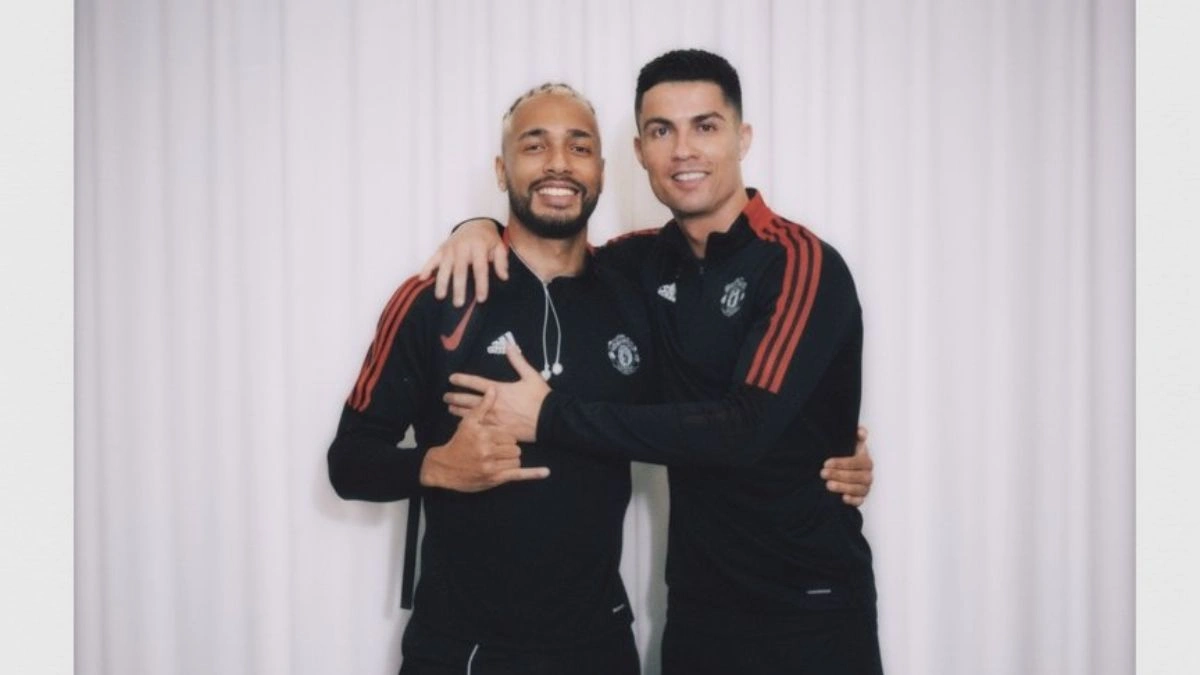
- Cristiano Ronaldo’s photo –

Cristiano Ronaldo, Credits- Twitter A publicly available image of him that is clear and suitable for the AI generation.
Make sure both photos are properly cropped, and the faces are clearly visible. Google Gemini requires accurate facial input to generate realistic AI photos.
Step 2: Upload Photos to Google Gemini
- Open Google Gemini and log in to your account.
- Navigate to the image creation or photo editing section.
- Upload both your photo and Cristiano Ronaldo’s photo. These will be the base images that the AI uses to generate the final Polaroid.
Tip: Keep the photos in JPEG or PNG format for best quality.
Step 3: Write Your AI Prompt
Once your photos are uploaded, you need to write a precise prompt to guide the AI. For a Polaroid-style photo with you and Cristiano Ronaldo, you can use a prompt like this:
Read More

“Take a photo taken with a Polaroid camera. The photo should look like an ordinary photograph, without an explicit subject or property. The photo should have a slight blur and a consistent light source, like a flash from a dark room, scattered throughout the photo. Don’t change the faces. Change the background behind the two people with white curtains. Make cute poses with the boy and me.”
Google Gemini will use this prompt to generate a realistic Polaroid-style image while keeping the faces intact.
Step 4: Adjust the Settings
Google Gemini allows you to fine-tune certain settings for better results:

- Style: Choose “Polaroid” or “Retro Camera” style to mimic the Polaroid effect.
- Lighting: Ensure that the lighting is set to soft flash, scattered evenly.
- Blur: Apply a slight blur to mimic the authentic look of a Polaroid photo.
- Background: Set the background to white curtains or upload an image of white curtains to replace the existing background.
Step 5: Generate the AI Photo
- Click Generate after entering your prompt and adjusting settings.
- Wait for Google Gemini to process the image. This may take a few seconds to a minute depending on the resolution.
- Review the generated image carefully. Make sure the faces of you and Cristiano Ronaldo remain unchanged and the background looks natural.
Step 6: Edit if Needed
If the AI-generated photo needs minor adjustments:
- Use the in-built editing tools in Google Gemini to refine brightness, contrast, or slight blur.
- Crop the image into a Polaroid-style frame if it isn’t automatically applied.
Tip: Avoid over-editing to maintain the realistic Polaroid look.
Step 7: Save and Share
Once satisfied:
- Click Download to save your AI Polaroid photo.
- Share it on social media or print it for a real Polaroid effect.
Pro tip: You can print the photo on actual Polaroid film or use a Polaroid frame overlay to enhance authenticity.
Creating a Polaroid-style photo with Cristiano Ronaldo using Google Gemini is easy if you follow these steps: upload both photos, write a precise AI prompt, adjust settings for lighting and blur, and finalize the image. The result is a realistic, cute Polaroid photo with you and Cristiano Ronaldo that looks like a genuine snapshot.
FAQs
Q1. Do I need permission to use Cristiano Ronaldo’s photo?
A. Yes, for public sharing, make sure the image is from a source that allows such use, or only use it for personal projects.

Q2. Can I change the background in Google Gemini?
A. Yes, you can replace the background with white curtains or any other scene using the AI prompt or background replacement tool.
Q3. Can I make multiple Polaroid styles?
A. Yes, you can adjust the style, lighting, and blur to create different Polaroid looks.
Q4. Do the faces get altered by the AI?
A. If you specify “don’t change the faces,” Google Gemini will keep the facial features intact.
Q5. Can I print the AI-generated photo?
A. Absolutely. Save the image in high resolution and print it using Polaroid-compatible paper or overlay it with a Polaroid frame.
Also Read- Juventus Vs Borussia Dortmund: 8-Goal Thriller Ends In Dramatic 4-4 Draw